

Welcome to E.Gerion Reviews. Today, we are breaking down a critical topic: securing your Apple ecosystem. Many users live under a dangerous illusion: “I have a Mac; I am safe.” That is a myth.
Apple security is a solid foundation, not a silver bullet. Real control comes from digital hygiene and knowing your system’s internals, not from slapping on a third-party antivirus. We are not here to sell fear. We are here to hand you the controls.
The Apple Security Myth: Why Your Mac Isn’t as Safe as You Think
macOS is a highly secure system, but it is not invulnerable. Exploits exist, phishing thrives, and modern threats target user data rather than system integrity. Relying on a commercial antivirus often creates a false sense of security while draining your system resources. True defense requires conscious access management and active network monitoring.
Outer Defense: Why Safari’s Privacy Report is Your First Line of Armor
Your web browser is the front line. In 2026, Safari is a privacy engine. It doesn’t just render pages; it actively blocks profiling. As we discussed in our recent reviews of stolen attention and marketing manipulation, modern trackers are not just about advertising—they are a sophisticated method of user profiling.
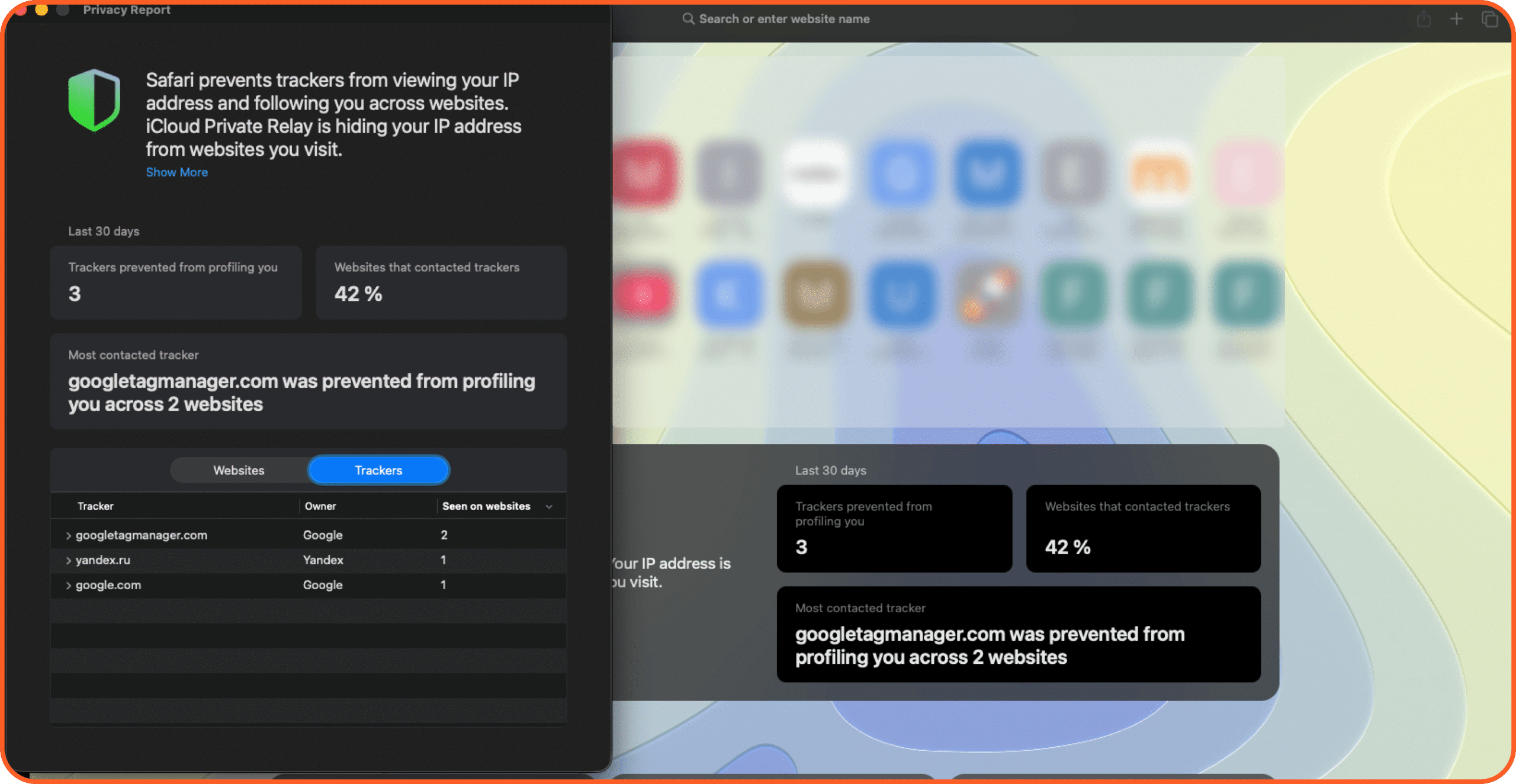
The Privacy Report is your baseline. Safari automatically stops cross-site trackers, cutting off ad networks from harvesting your habits. This mitigates the risk of targeted attacks and data leaks. Do not ignore this tool. It tells you exactly who is hunting your data.
Outer Defense: Why Safari’s Privacy Report is Your First Line of Armor
Your web browser is the front line. In 2026, Safari is a privacy engine. It doesn’t just render pages; it actively blocks profiling.
The Privacy Report is your baseline. Safari automatically stops cross-site trackers, cutting off ad networks from harvesting your habits. This mitigates the risk of targeted attacks and data leaks. Do not ignore this tool. It tells you exactly who is hunting your data.
Inner Defense: The ‘Default Refusal’ Rule for Camera and Mic Permissions
If outer defense protects the perimeter, inner defense locks down the core. The golden rule of expert security? Default refusal. Everything is forbidden unless explicitly allowed.
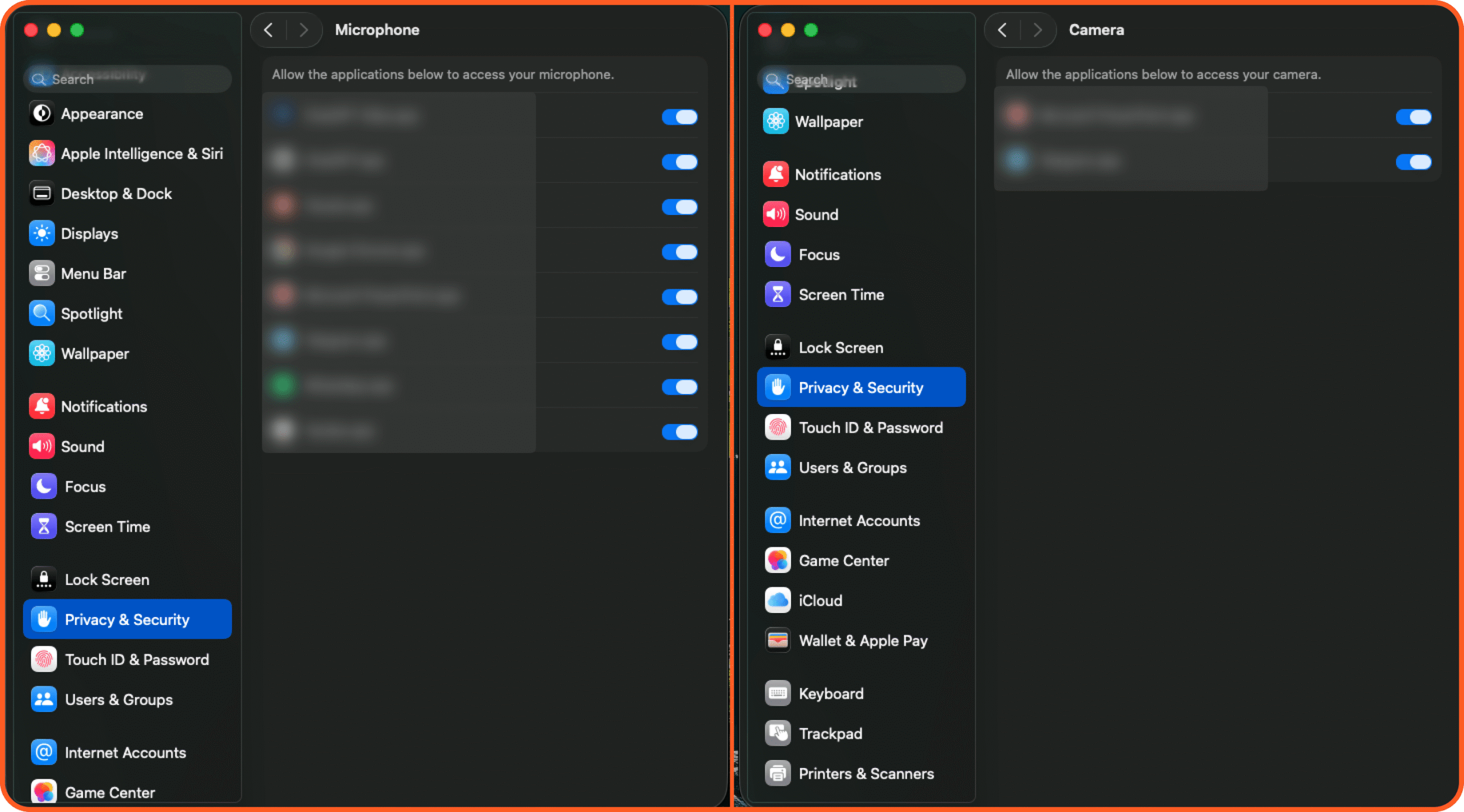
Audit your Camera and Microphone permissions in Privacy & Security. Check the app list. Grant access only to apps that strictly require it. In the AI era of 2026, handing mic and camera access to shady applications is a direct path to a data breach. Deny by default.
Hidden Threats: Using Activity Monitor to Expose Silent Data Leaks
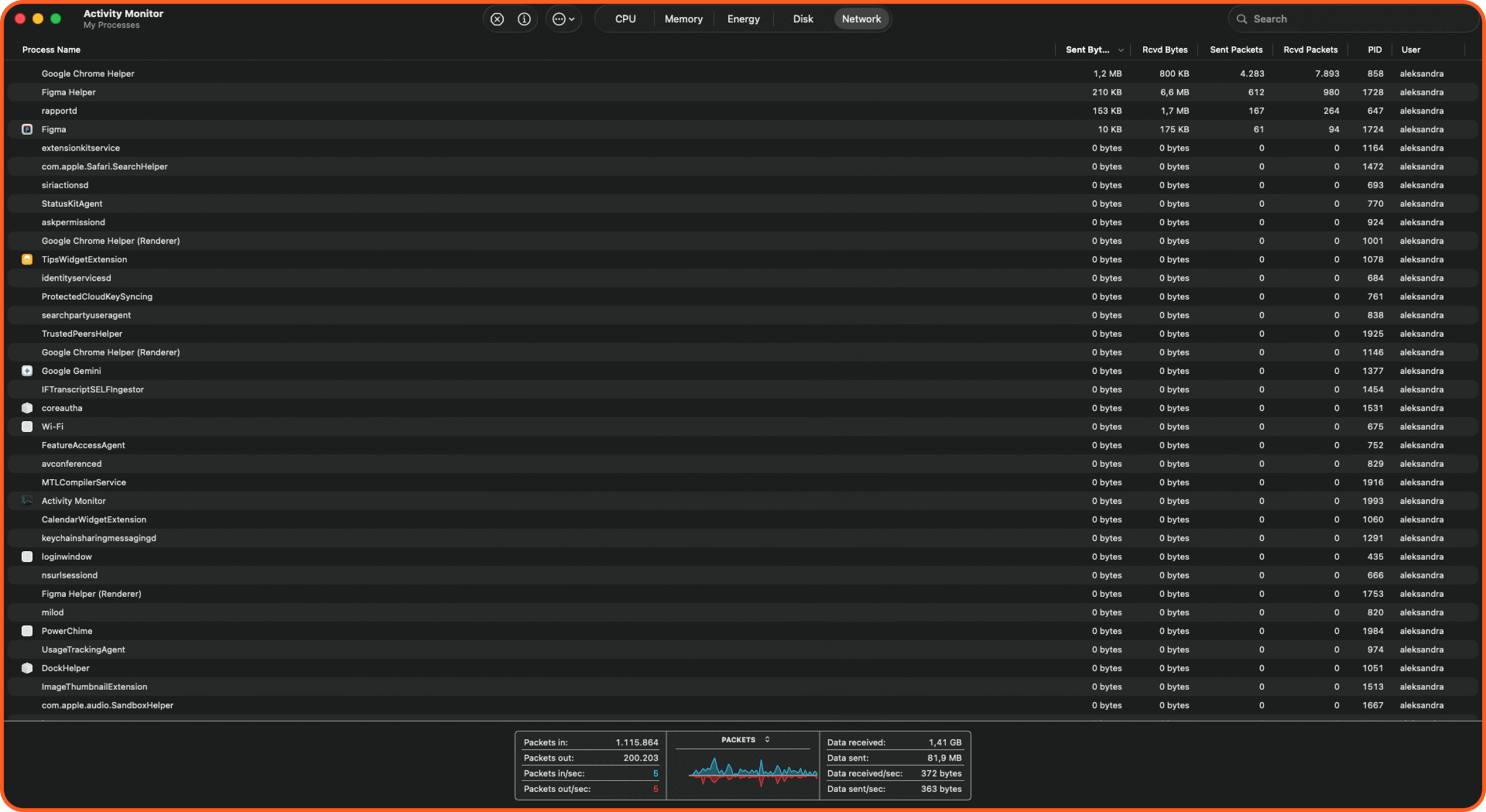
Want to know what your system is actually doing? Ignore the polished UI. Open Activity Monitor. This isn’t just a tool for force-quitting frozen apps; it is a deep network auditor.
The Network tab exposes exactly which processes are sending and receiving data. Learn to spot the difference between legitimate system services (like rapportd or Apple Intelligence daemons) and third-party traffic hogs. Watch for processes dumping massive data payloads to unknown domains. That is a classic symptom of a backdoor. Activity Monitor is your X-ray for hidden threats.
Mobile Privacy: The 2-Minute iPhone Settings Audit You Need Today
Let’s move to your iPhone. iOS manages security differently, but the principles are identical: control access and minimize data transfer. Because it is always connected and tracking your location, your iPhone is a high-value target in 2026.
Audit two key areas: Safari settings and Tracking permissions.
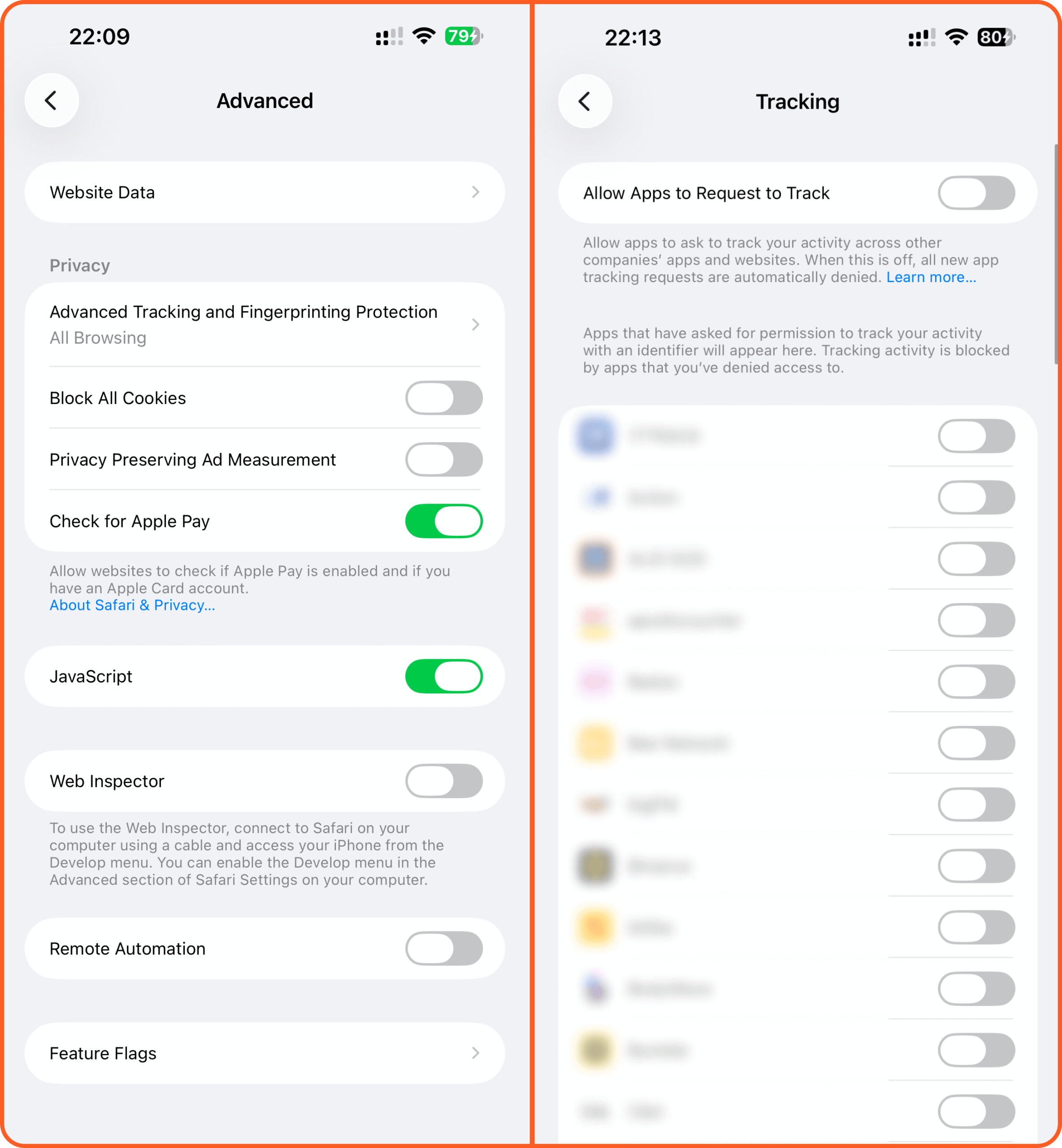
Under Safari settings (Advanced), turn on “Advanced Tracking and Fingerprinting Protection”. This blocks complex web profiling. Also, ensure “Check for Apple Pay” is only active if you actually use that feature.
Next is the most crucial step: go to Privacy & Security -> Tracking. Disable “Allow Apps to Request to Track”. This is a global ban on web tracking. In 2026, data is currency. Denying tracking is your executive order to protect your privacy.
The Golden Rule of Security: Your 3-Step Survival Checklist
Apple security is a process, not a state. It demands constant auditing and digital hygiene. Digital hygiene is the foundation of everything we do here. If you want to learn more about protecting your primary communication channels, be sure to read our audit: Email Authentication: Ensuring Deliverability and Security in 2026. Remember: the best antivirus sits between the chair and the keyboard. Use these technical tools to take control.
Here are three actions every E.Gerion Reviews reader should take right now:
On Mac: Open Activity Monitor, check the Network tab, and hunt down processes with massive data uploads.
On Mac and iPhone: Audit Camera and Microphone permissions. Revoke access for anything suspicious.
On iPhone: Disable “Allow Apps to Request to Track” in the Tracking settings.
Have questions about your system audit? Drop a comment below, and let’s check it together.